
Ergonomic basics every office should get right
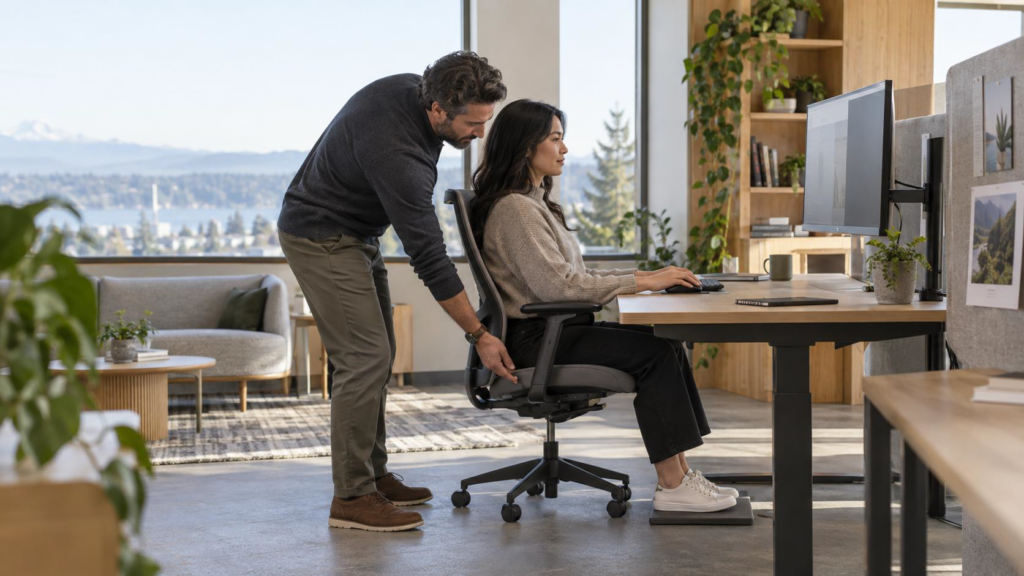
Most office discomfort starts with an ordinary mismatch. A monitor sits too far to one side. A chair is set for someone taller. A laptop becomes a full-time workstation without a separate keyboard. Each problem may look minor, but hours in an awkward position can leave employees tired, sore, and distracted.
Ergonomics is the practice of fitting work to the person. It doesn’t require perfect posture or an expensive gadget for every desk. It requires adjustable equipment, a sensible setup, and enough movement during the day. OSHA notes that no single workstation arrangement fits everyone, so the goal is a setup where each employee can adjust to their body and work.
Start with the chair
The chair sets the height and position for the rest of the workstation. Adjust it before moving the monitor or keyboard.
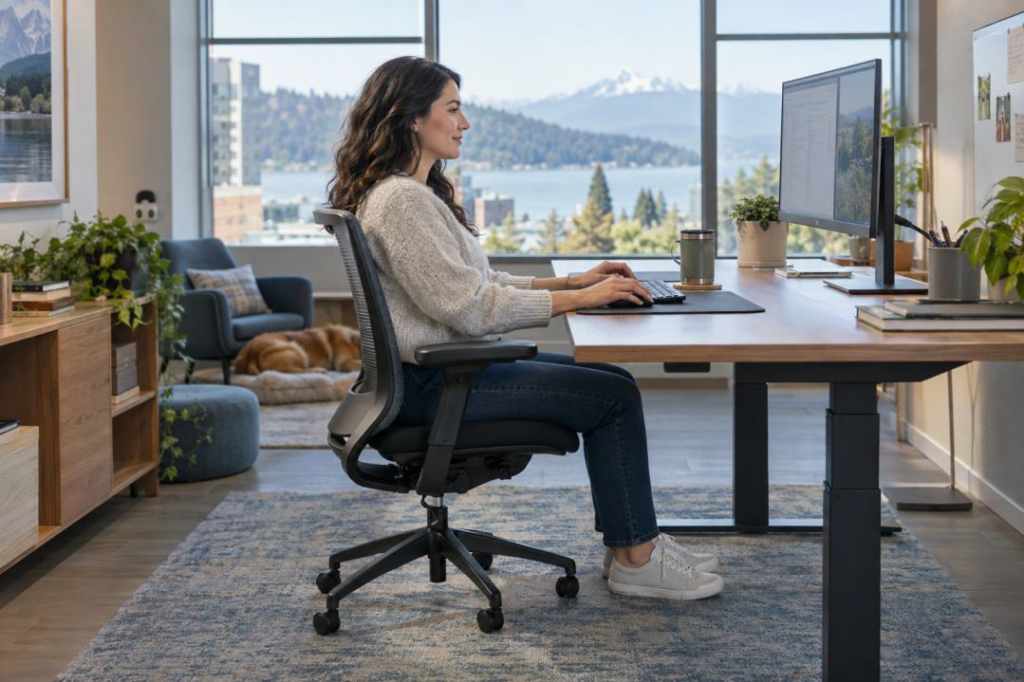
Sit back so the backrest supports the lower back. Set the seat height so the feet rest flat on the floor. If raising the chair is necessary to reach the keyboard comfortably, add a footrest rather than leaving the feet unsupported. Keep a small space between the front edge of the seat and the back of the knees.
Armrests should support relaxed shoulders without pushing them upward. If the armrests keep the chair from moving close to the desk or force the elbows outward, lower or remove them when the chair allows it.
A good chair offers useful adjustments, but more controls don’t necessarily help if employees don’t know what they change. Give new employees a short chair setup lesson. Keep the instructions near shared workstations where settings change often.
Keep the keyboard and mouse close
Place the keyboard and mouse where the employee can use them with the elbows near the body. The shoulders should stay relaxed, and the wrists should remain in line with the forearms instead of bending up, down, or sideways.
Avoid placing the mouse beyond a stack of papers or on a separate surface that requires a reach. The keyboard and mouse should sit at the same height and close enough to use without leaning forward. Employees who often use a phone may also benefit from a headset, so they aren’t holding the phone between the shoulder and ear.
Desk height matters here. If the work surface is too high, the employee may lift their shoulders. If it is too low, they may bend forward. An adjustable desk or keyboard tray can help when one fixed desk must serve people of different heights.
Put the main screen straight ahead
The screen used most often belongs directly to the employee. OSHA recommends placing the monitor at least 20 inches away, with a preferred viewing distance of about 20 to 40 inches. The employee should be able to read the screen while sitting back in the chair. Increase text size before leaning toward a distant display.
The top of the screen should sit at or slightly below eye level for most users. People who wear bifocals may need the screen lower so they can view it without tipping their head back. Position a second monitor according to how often it is used. If both screens receive equal use, place them close together and center the gap. If one is primary, keep that screen centered.
Place monitors at a right angle to nearby windows when possible. This reduces glare without forcing the employee to twist away from the screen.
Treat laptops as portable computers
A laptop ties the screen and keyboard together. That design makes it hard to place both at a comfortable height during long work sessions. Raising the screen usually raises the keyboard too high. Keeping the keyboard at elbow height usually places the screen too low.
For regular desk work, pair the laptop with an external keyboard and mouse. Then raise the laptop on a stable stand or connect it to a separate monitor. A docking station can make this setup easier for employees who carry a laptop between home and the office.
Short tasks at a conference table or airport are different from several hours of focused work. Equip the places where sustained work happens.
Control glare and make the screen easy to read
An employee who cannot see the screen clearly will often move into an awkward position to compensate. Check the workstation at the time of day when glare is the worst. Reposition the monitor, adjust blinds, or move a task light before adding a screen filter.
Keep the screen clean and set brightness and contrast for the room. Increase font size when needed. Paper documents should be close to the monitor and at a similar height when an employee moves between the page and screen throughout the day. A document holder can reduce repeated head turning and downward bending.
Lighting needs to support the task. Detailed paperwork may need a focused lamp, while computer work usually benefits from lower, even ambient light. One light level rarely works for every employee and every task.
Make room for movement
Good equipment cannot remove the effects of staying in one position for too long. NIOSH advises office workers to avoid prolonged sitting or standing and points to short hourly breaks as one way to reduce discomfort during computer work.
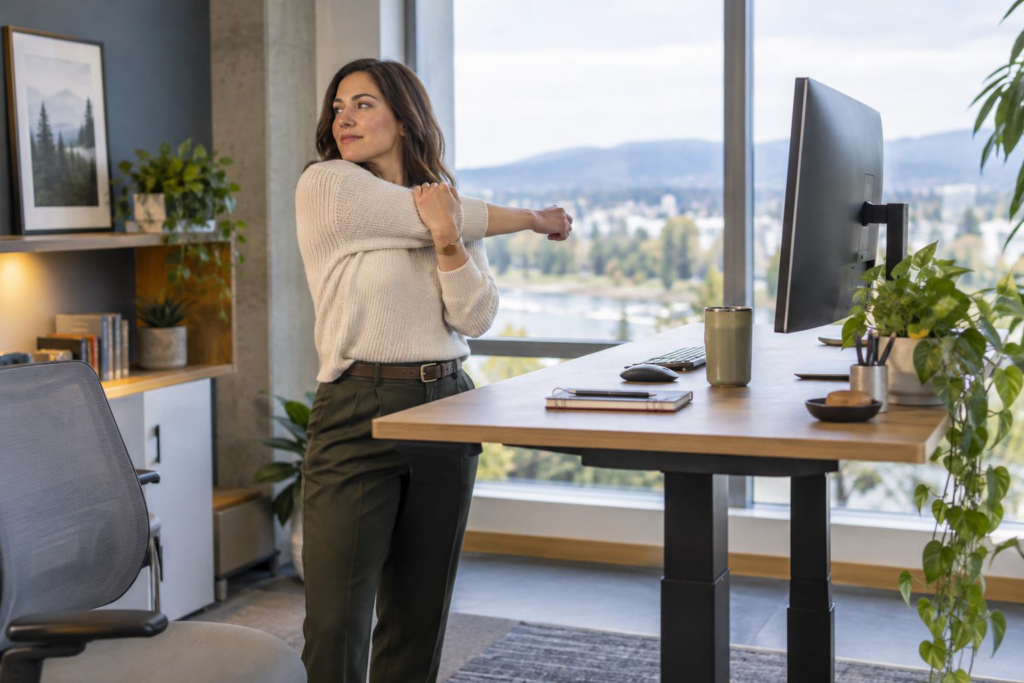
Encourage employees to change positions, stand for a call, walk to a printer, or complete a short task away from the screen. A sit-stand desk can make position changes easier, but standing all day isn’t the goal. The useful feature is the option to move between supported positions.
Managers influence this more than any chair control. If the workday leaves no room for brief pauses, employees are less likely to use them. Build small changes of position into normal work instead of relying on reminders after discomfort begins.
Set up shared and hybrid workspaces for adjustment
Shared desks need a wider adjustment range because each user starts with someone else’s settings.
Choose chairs with clear controls, monitor arms that move without tools, and work surfaces that leave enough space for the keyboard and mouse. Keep a footrest nearby for shorter users.
A one-minute reset card can help employees adjust the space when they arrive:
• Sit back and support the feet.
• Relax the shoulders and bring the keyboard and mouse close.
• Center the main screen and set its height.
• Remove glare and enlarge text if needed.
• Plan a change of position during the next hour.
Home workstations deserve the same attention when employees spend a large part of the week there. A compact external keyboard, mouse, and laptop stand can correct several common problems without replacing the entire desk.
Buy for fit and teach people how to adjust it
Furniture decisions should account for the people, tasks, and spaces involved. A chair that suits a private office may not have enough adjustment for a shared station. A large monitor may require a deeper work surface. A height-adjustable desk still needs cable management that permits its full range of motion.
Test equipment with the employees who will use it. Check out the shortest and tallest likely users, the technology on the desk, and the work employees perform most often. Then include setup guidance when the furniture arrives. Adjustment is part of the product’s value.
Keeney’s helps Puget Sound businesses plan office interiors and select workplace products that fit the way their teams work. If you are reviewing chairs, desks, monitor support, or a larger office layout, contact a Keeney’s specialist to talk through the space and the people who use it.
Planning a workplace update? Talk with a Keeney’s specialist
Quick workstation check
• Is the lower back supported?
• Are both feet supported by the floor or footrest?
• Are the shoulders relaxed and the elbows close to the body?
• Are the keyboard and mouse within easy reach?
• Is the main monitor directly ahead and easy to read while sitting back?
• Is glare controlled?
• Can the employee change positions during the day?
Persistent pain, numbness, or weakness deserves attention. Employees should report concerns through
the appropriate workplace process and seek medical advice when needed.